
Video Guide
Step by Step Guide
Follow these steps to install Kantr on a Wix site. Wix offers custom code areas where you can paste your Kantr embed snippet.
Before you start
- Log in to app.kantrsoftware.com.
- Click on the Sales Assistant option on the left menu
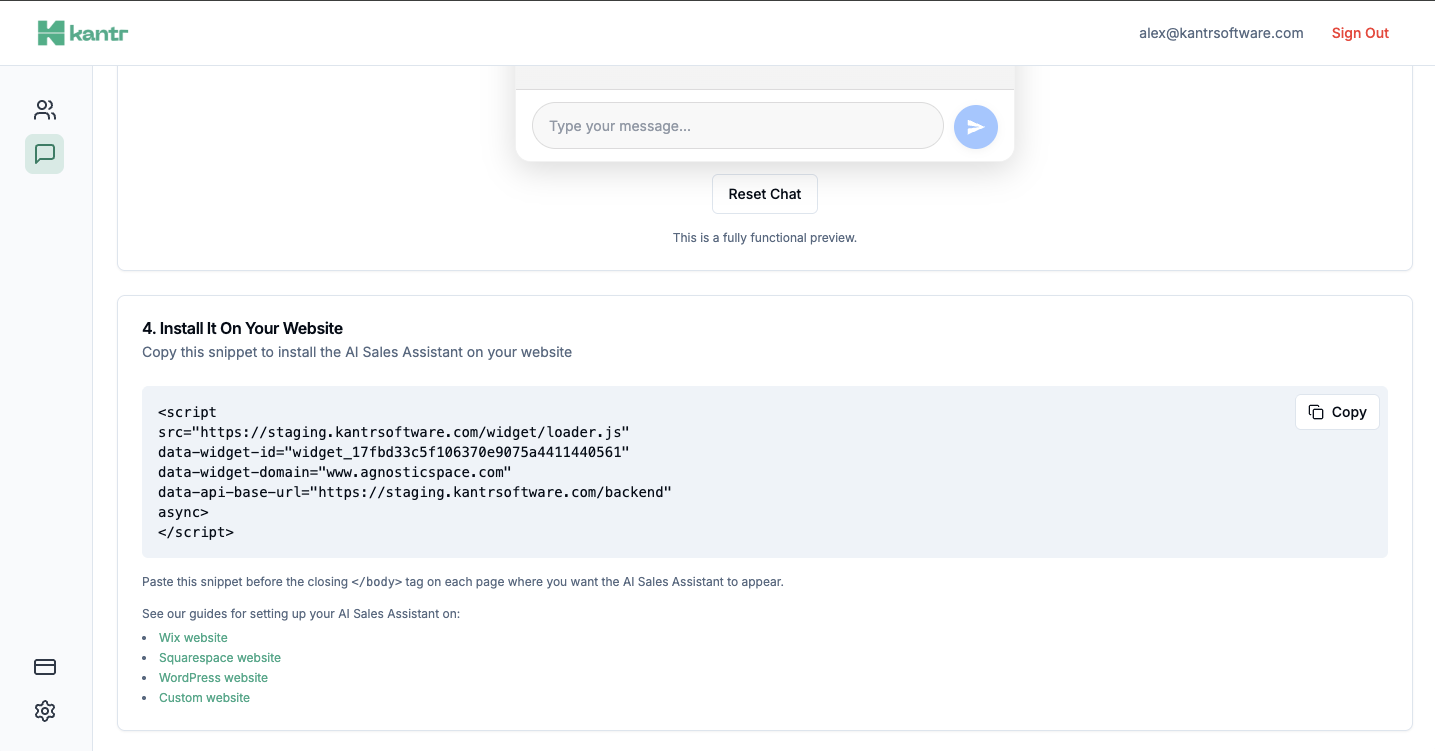
- Scroll down to the Add To Website section and copy your installation snippet.
Install on Wix
- Go to your Wix admin dashboard.
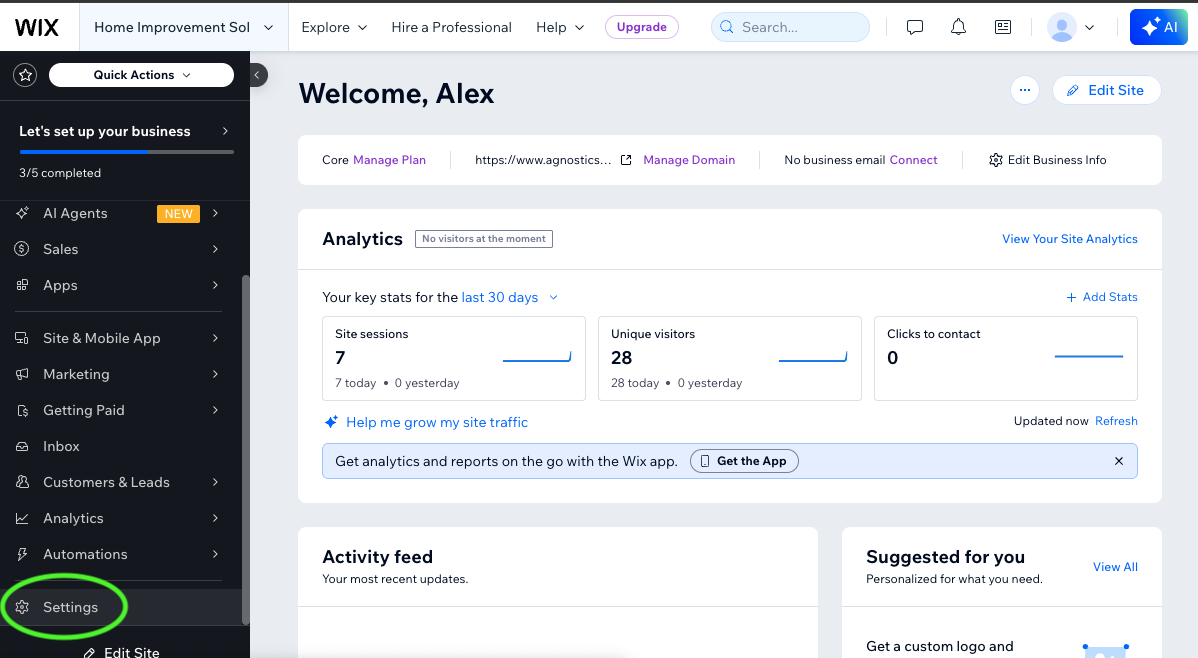
- Scroll down on the left sidebar to Settings
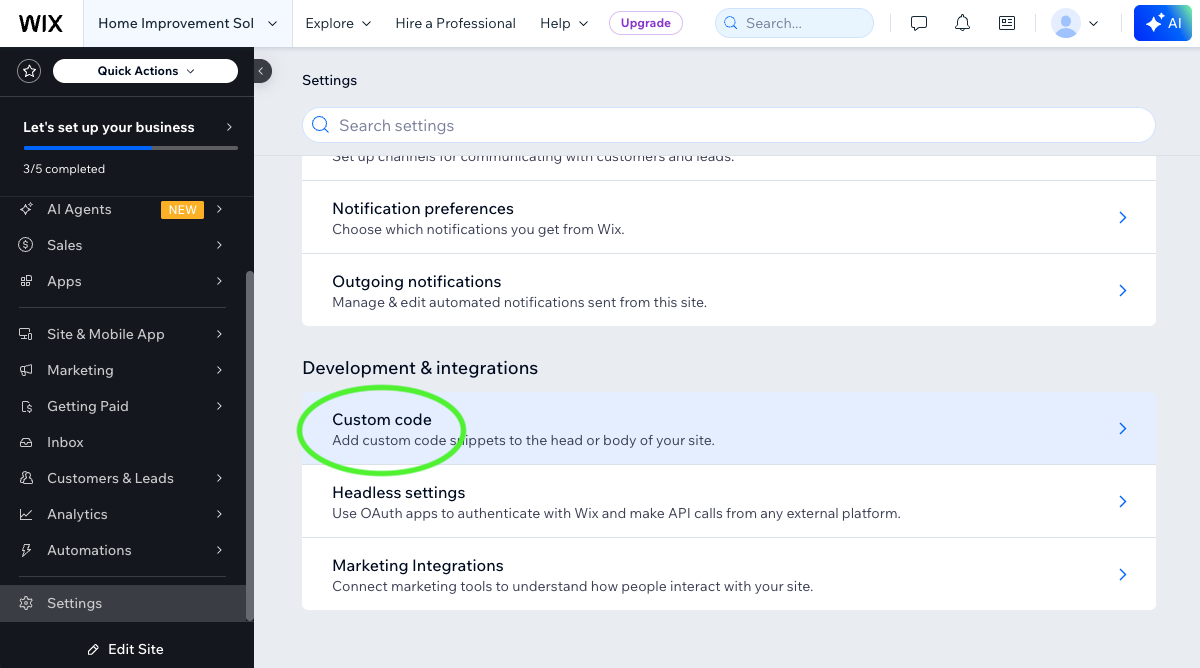
- Within settings scroll down to Custom Code.
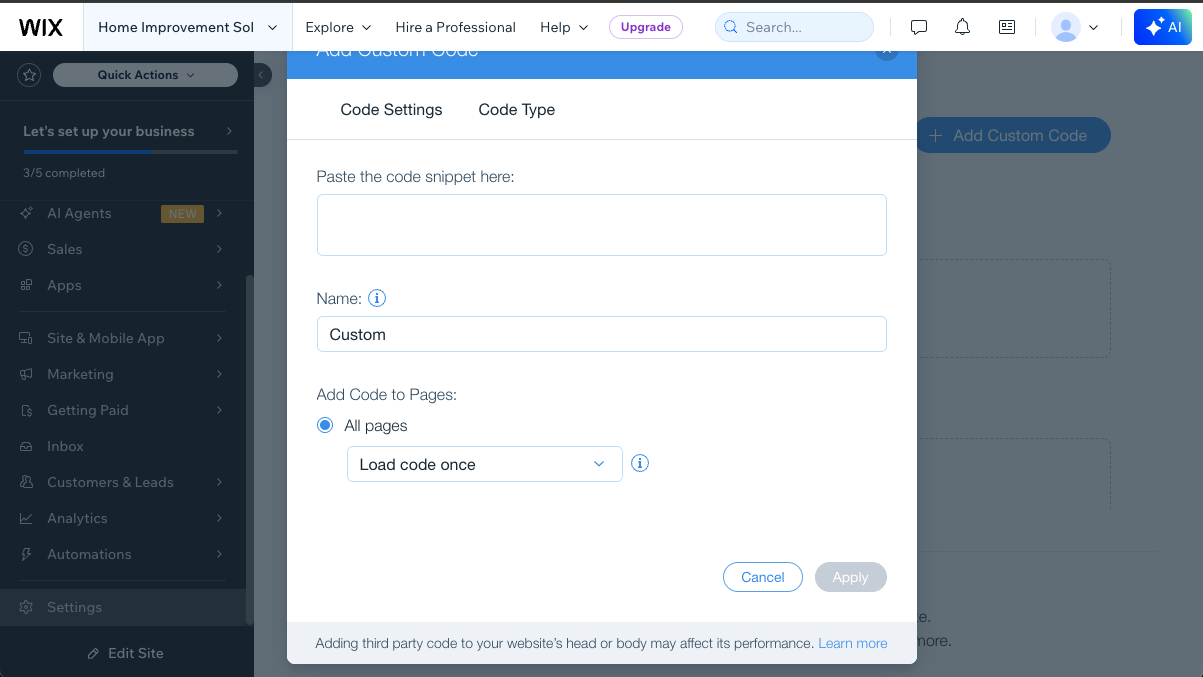
- Click on Add Code within the Head section which will bring up a small window.
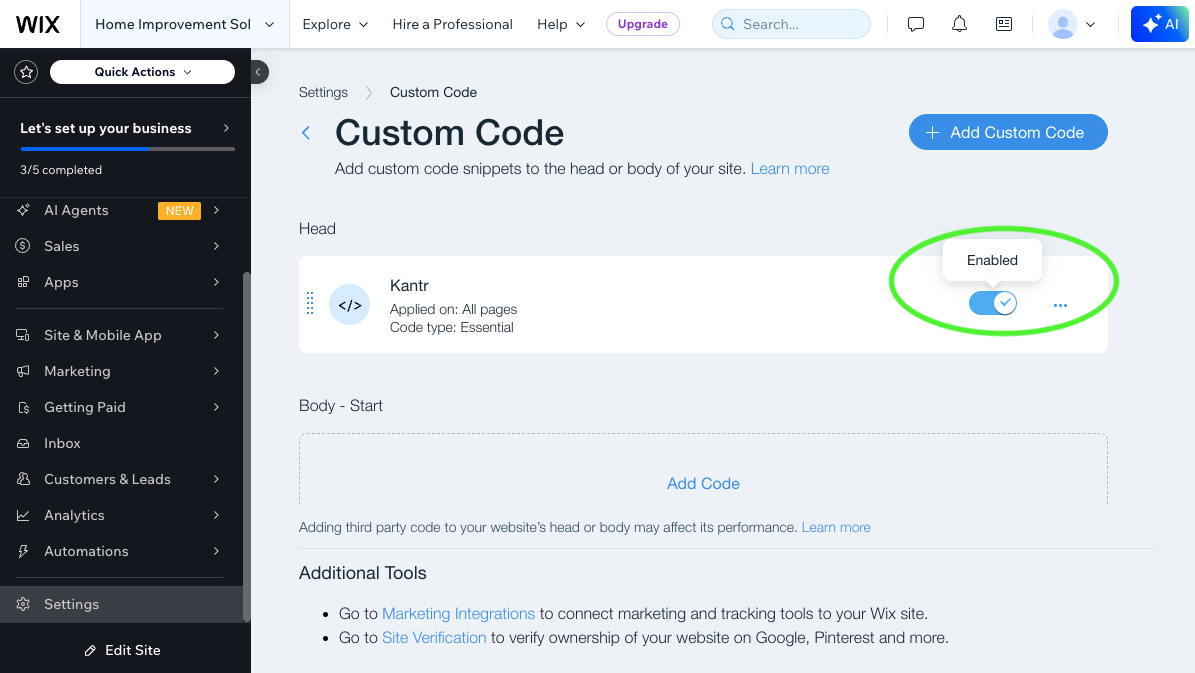
- Paste your Kantr snippet, name the snippet (e.g. “Kantr”), and click Apply.
- Double check that the code is set to Enabled

That's it!
That's it! Your Kantr Sales Assistant should now be installed and active on your website.