
Step by Step Guide
Kantr provides a way for you to answer queries and capture leads automatically from your website. To add Kantr to your website, just copy the installation code snippet and add that to your website.
If you're not sure how to do that, just provide the installation code snippet and send it to your website developer to add it to your website.
Find the installation code snippet
- Log in to app.kantrsoftware.com.
- Click on the Sales Assistant option on the left menu
- Scroll down to the Add To Website section and copy your installation snippet.
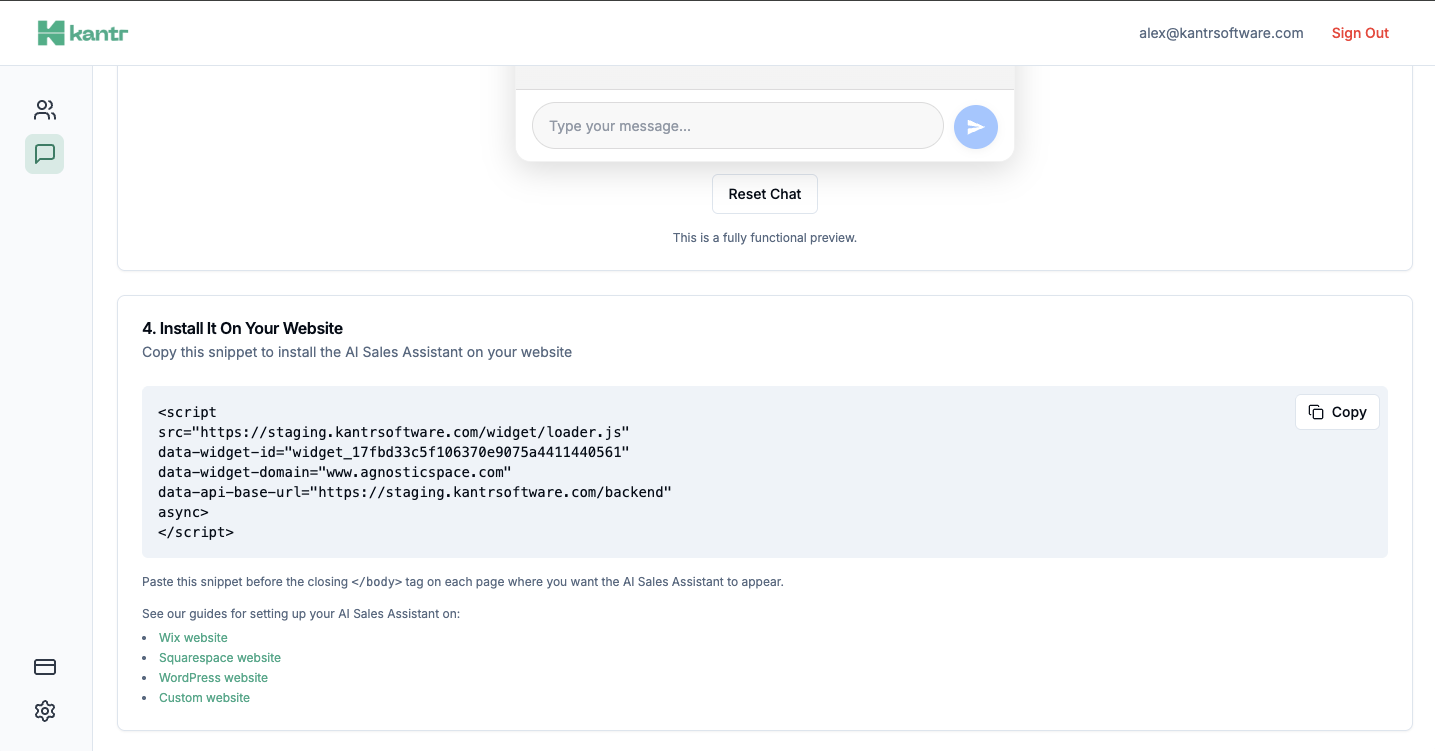
Add it to your website pages individually
- Add that code to your website on any pages where you want it to appear in the header. This is usually the
<head>section of your website.
Add it to all pages at once
- If you have a base or template header that is applied to all pages, you can add the snippet to that header and it will be applied to all pages.
Website builders
If you use a hosted builder instead of custom code, see: