
Video Guide
Step by Step Guide
Follow these steps to install Kantr on a Squarespace site. You’ll paste a single snippet from your Kantr dashboard into Squarespace’s code injection area.
Before you start
- Log in to app.kantrsoftware.com.
- Click on the Sales Assistant option on the left menu
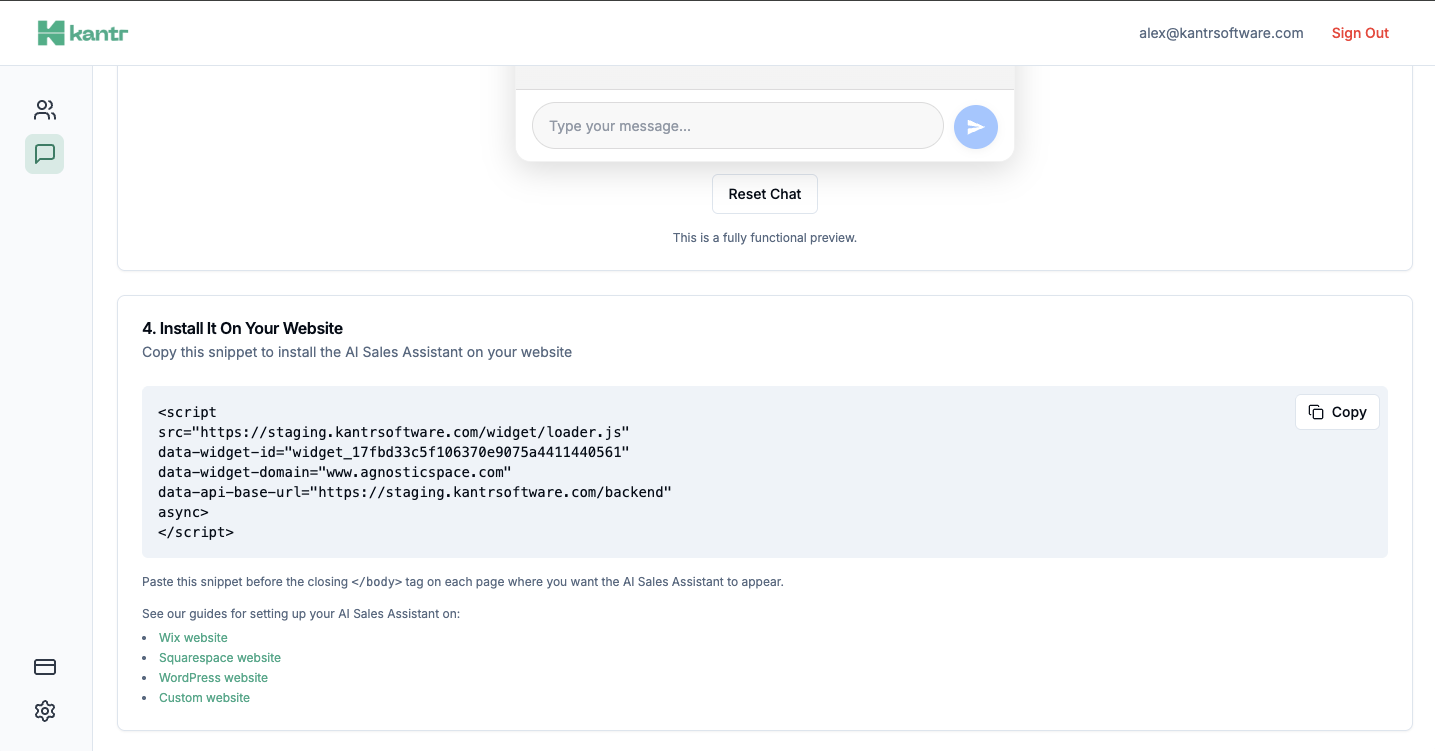
- Scroll down to the Add To Website section and copy your installation snippet.
Install on Squarespace
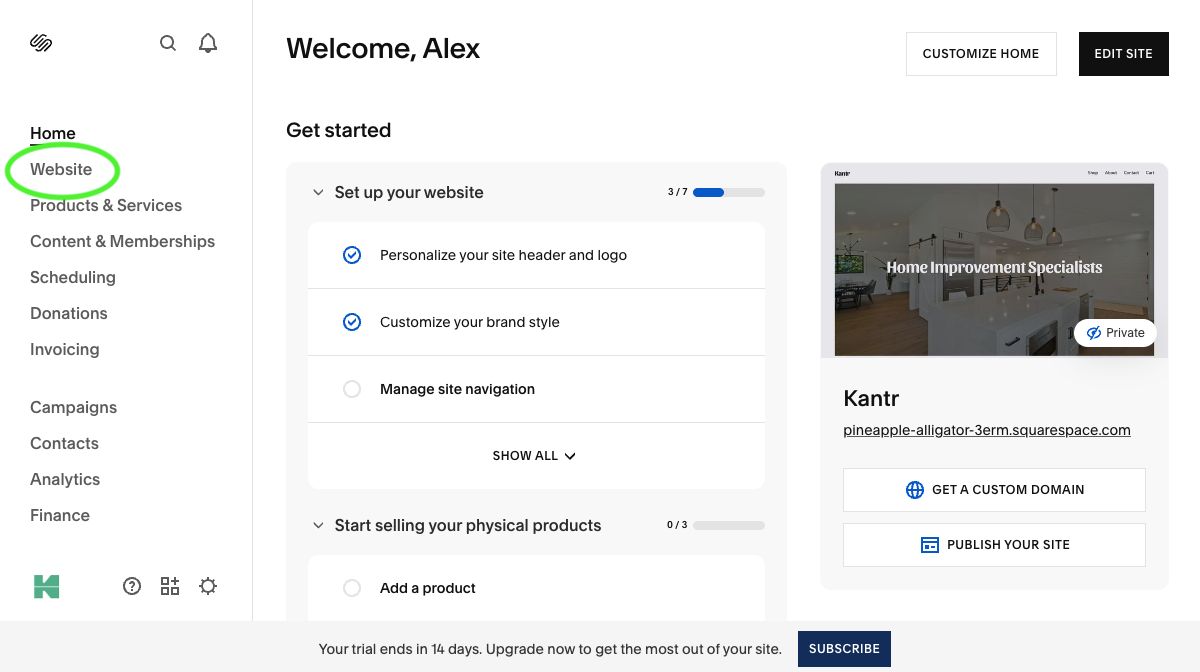
- Go to your Squarespace admin dashboard and click on the Website menu item in the left sidebar.
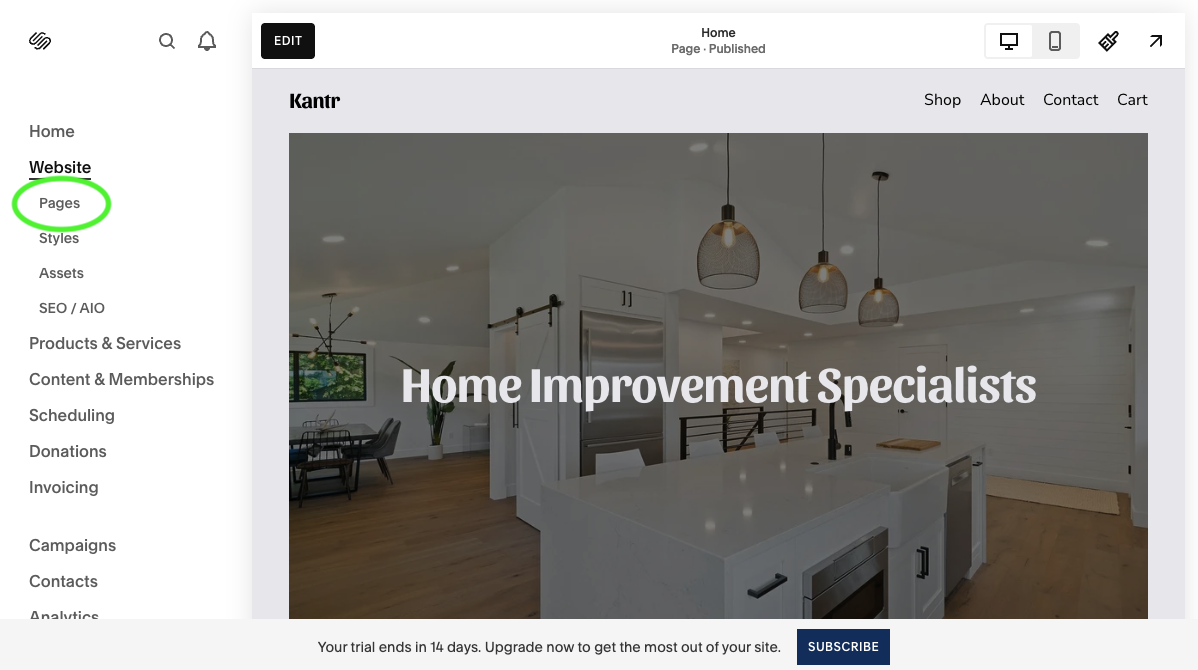
- This will open up a sub-menu. Here you click on Pages.
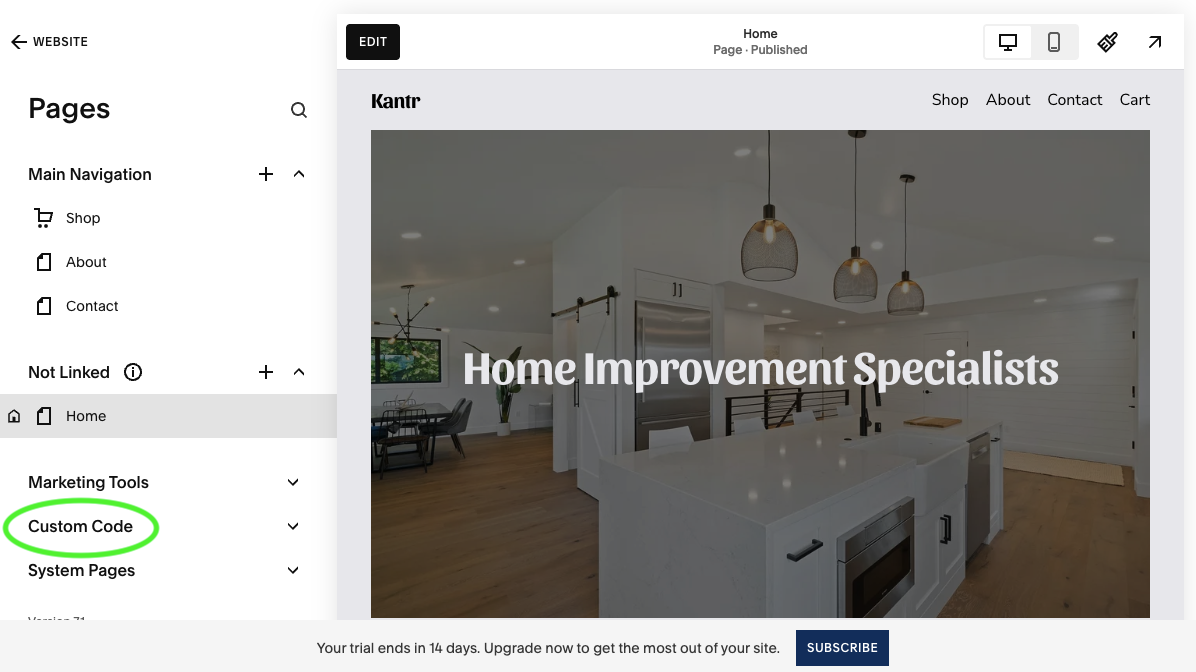
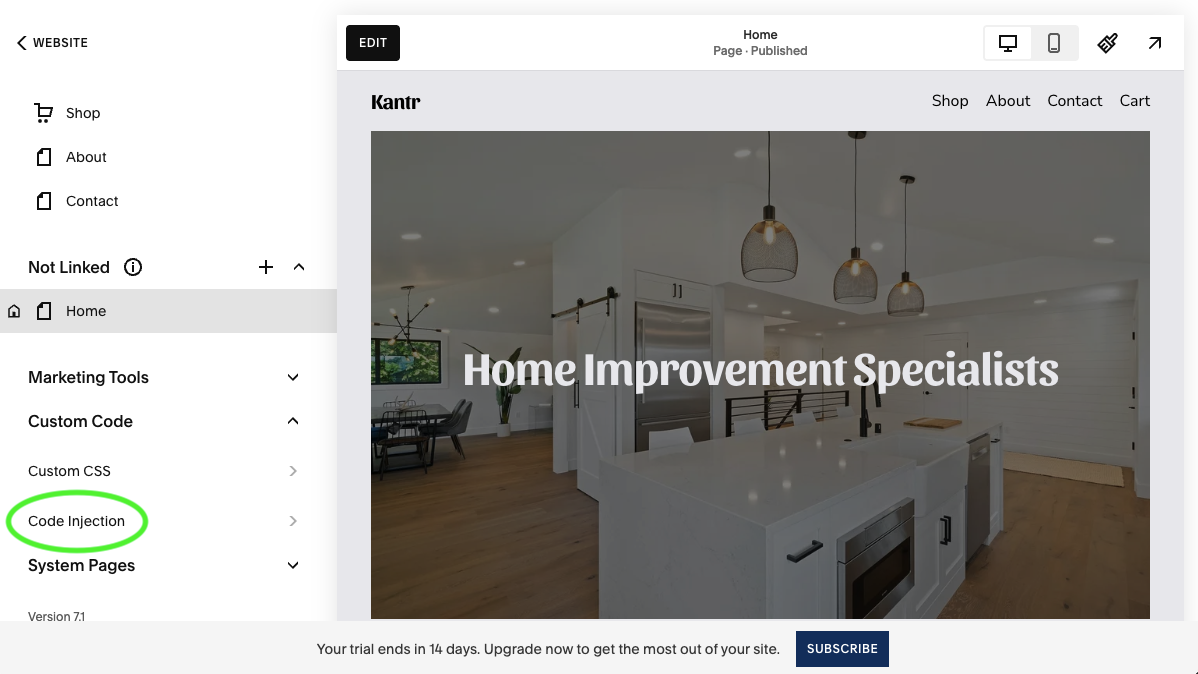
- Click on Custom Code at the bottom of the left menu.
- Click on Code Injection.
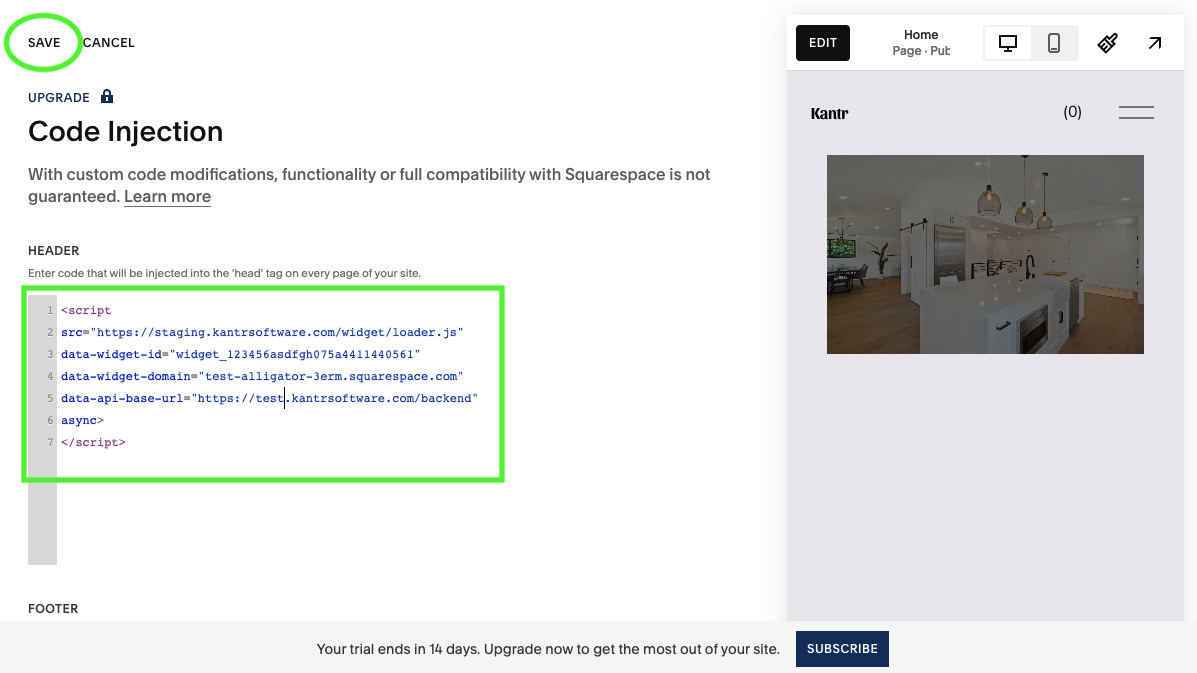
- Paste your Kantr snippet into the Header field.
- Click Save.
That's it!
That's it! Your Kantr Sales Assistant should now be installed and active on your website.